 RegionShare
The Missing Half of Screen Sharing
Your ultrawide monitor looks great to you. But when you share it in .svg) Google Meet, participants see tiny, unreadable text. RegionShare lets you share just half your screen—so people can actually see what you're showing.
Google Meet, participants see tiny, unreadable text. RegionShare lets you share just half your screen—so people can actually see what you're showing.
macOS 13.0+ (Ventura) • Free • No subscription
Google Meet Gives You Two Bad Options
You have an ultrawide monitor. You need to share your screen. But neither option works.
Share Full Screen
Everyone sees tiny, unreadable text. 'Can you zoom in?' You can't.
Share One Window
Content is readable, but you're trapped. Need to switch apps? Stop sharing. Switch. Share again.
Constant Interruptions
Your flow is broken. Participants are frustrated. Demos feel unprofessional.
What you actually need: Share half your screen. Switch windows freely. Let people read your content.
Share a Region,Not the Whole Screen
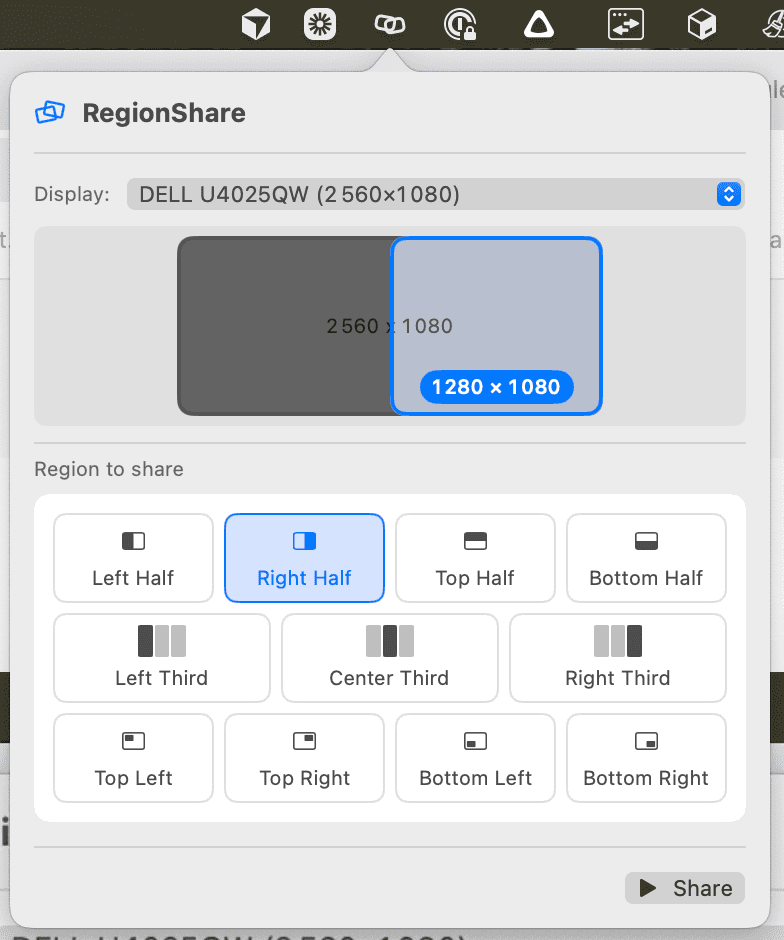
- One click to share left half, right half, top half, or bottom half of your screen. Perfect 1920×1080 regions from your ultrawide monitor that participants can actually read.
- Appears as 'RegionShare Camera' in Google Meet, Zoom, Microsoft Teams, and any video conferencing app. No browser extensions. No configuration. Just works.
- Move any window into your shared region. Switch between IDE, browser, terminal, or any app without stopping and restarting screen sharing. Your flow stays uninterrupted.
- Keep Slack messages, emails, and personal windows completely hidden. Use the other half of your screen for notes, docs, and anything you need while presenting—invisible to participants.
Built for How You Actually Work
Whether you're coding, presenting, teaching, or demoing—RegionShare adapts to your workflow.
For Developers
Show your code editor without exposing your entire desktop or terminal history.
"Share code on the left. Keep Stack Overflow and docs on the right for yourself."
For Professionals
Present slides or documents while keeping notes and other windows completely hidden.
"Share your presentation on the left. Keep your notes on the right."
For Teachers
Present lesson materials while keeping attendance sheets, grades, and personal windows private.
"Students can actually read your code. No more 'can you make that bigger?'"
For Ultrawide Users
Finally, your 21:9 monitor makes sense in video calls. No more squinting participants.
"Your ultrawide monitor, meeting-ready. Share the perfect 16:9 region."
The Real Problem You're Solving
❌ Before RegionShare:
- • Full screen share → Unreadable tiny text
- • Window share → Constant stop/start sharing
- • "Can you zoom in?" → You can't
✅ After RegionShare:
- • Share left half → Perfect readable size
- • Switch windows freely → No interruptions
- • Participants see clearly → No zoom requests
Pricing
Simple, transparent pricing
One-Time Purchase
Lifetime access to RegionShare
$4.99
$0.00
Get it free while in early access
- Lifetime access
- All features included
- Free updates
- Email support
Pay once. Access forever.
FAQ
Frequently Asked Questions
It's simple:
- Define a region: Choose left half, right half, top half, or bottom half of your screen.
- RegionShare creates a window: A new window appears that shows the exact content in your selected region.
- Share that window: In Google Meet or Zoom, select "RegionShare Camera" as your camera source.
Everything in that region will be shared—any window you move into that area, any content you display there. Move windows in and out freely, and participants always see exactly what's in your selected region.
Everything within your selected region gets shared. If you choose "Left Half", then any window, app, or content you move into the left half of your screen will be visible to participants. Move a window out of that region, and it disappears from the shared view. It's like having a camera pointed at just that part of your screen.
Yes! RegionShare appears as a virtual camera called "RegionShare Camera" in any video conferencing app—Google Meet, Zoom, Microsoft Teams, and more. Just select it from your camera options like you would select any other camera. No browser extensions or plugins needed.
Yes, RegionShare is completely free. No subscription, no account required, no hidden fees. Download it, use it, and share your screen better. That's it.
You need:
- macOS 12.3 (Monterey) or later
- Screen recording permission (you'll be prompted on first launch)
- Any video conferencing app (Google Meet, Zoom, Teams, etc.)
That's all! No account signup, no configuration, no technical setup required.
Absolutely! That's the whole point. Once you've selected your region and started sharing, you can freely move any window into or out of that region. Switch between your IDE, browser, terminal, notes—whatever you need. No need to stop sharing, switch apps, and reshare like you do with traditional window sharing.
Feel free to reach out at support@regionshare.app

Stop Making Your Team Squint
Share the right size region. Switch windows freely. Let people actually see what you're showing.
Free download • macOS 12.3+ • No subscription • No account required
Download RegionShare